- 1 Command Line Interface (CLI)
- -bash
- Create file if it doesn't exist
- 1.3.2 tree: 以树状打印directory架构
- 1.3.3 pwd: print working directory
- 1.3.4 mkdir: make directory
- 1.3.5 touch: create file
- 1.3.6 rm, rm -rf: remove
- 1.3.7 cd: change directory 更改工作目录
- 1.3.8 cp: copy and paste a file
- 1.3.9 open / wslview: Mac/Wsl打开文件
- 1.3.10 wget: 下载来自Internet的文件
- 1.3.11 tar: 解压压缩包
- 1.3.12 diff: 比较文件
- 1.3.13 cat: 打印文件内容
- 1.3.14 grep: 在(多个)file中搜索
- 1.4 File, Directory, Path
- 1.5 Redirection
- 1.6 Useful Tips
- 1.7 Shell Scripting(脚本)
1 Command Line Interface (CLI)
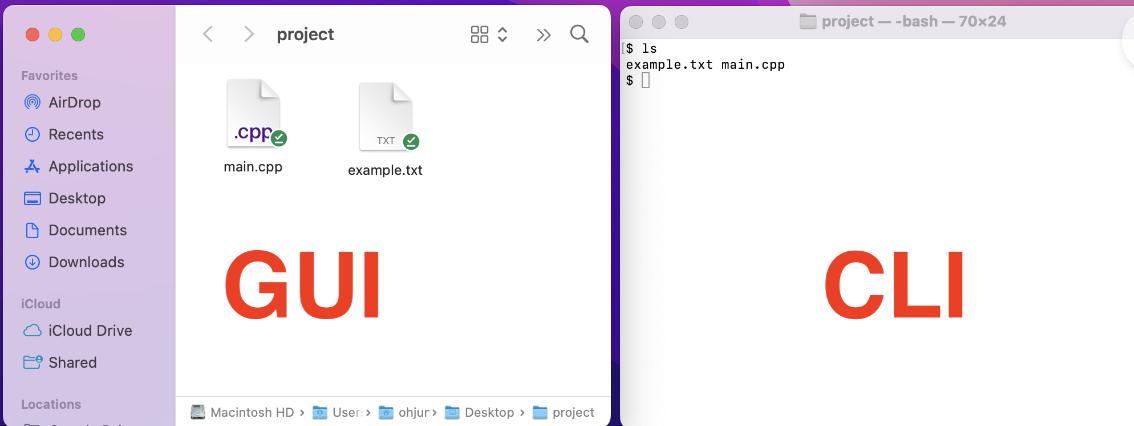
The GUI (Graphic User Interface) is a “point and click” way to interact with a computer. The Windows File Explorer and macOS Finder are examples of GUIs.
The CLI (Command Line Interface) is a text-based way to interact with a computer.
The terminal is another name for the CLI.
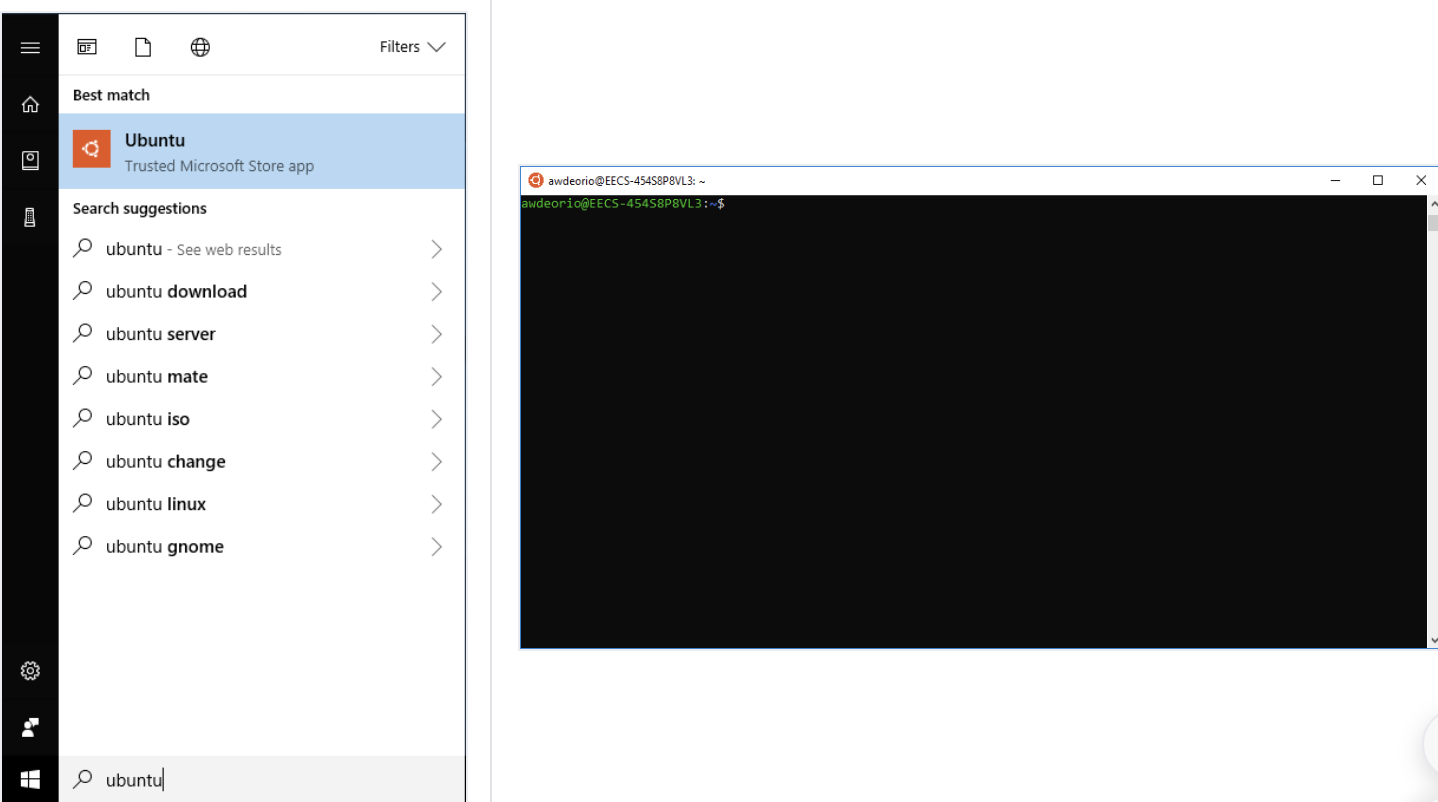
mac中,CLI就是terminal,terminal就是CLI; Windows Subsystem for Linux (WSL) 中叫做ubantu (没错就是ubantu server的虚拟机版本).
The CLI is fast, easy to automate, and easy to use remotely.
1.1 Mac OS CLI tools Installation
1.1.1 Install compiler
Open the Terminal application which comes with macOS. Install a compiler.
xcode-select --install
Notice that this compiler is really Apple LLVM pretending to be g++. Your version might be different.
g++ --version
#Configured with: --prefix=/Library/Developer/CommandLineTools/usr --with-gxx-include-dir=/usr/include/c++/4.2.1
# Apple LLVM version 9.0.0 (clang-900.0.38)
# Target: x86_64-apple-darwin16.7.0
#Thread model: posix
# InstalledDir: /Library/Developer/CommandLineTools/usr/bin*/)
1.1.2 Install Homebrew package manager
/bin/bash -c "$(curl -fsSL https://raw.githubusercontent.com/Homebrew/install/master/install.sh)"
Homebrew installs to a non-standard location, /opt/homebrew/.
重要的一步:把homebrew加入环境变量:
You’ll need to run the following to add Homebrew to your path:
echo 'eval "$(/opt/homebrew/bin/brew shellenv)"' >> ~/.zprofile
Check your install. Your version might be different.
brew --version
# 3Homebrew 3.6.14
Close your terminal and reopen your terminal.
1.1.3 Install CLI tools
Use the Homebrew package manager to install a few command line programs.
brew install wget git tree
1.1.4 Use CLI tools
前面已经说了,macOS所有的CLI就是在terminal中执行. 在terminal中写command时加上各种关键词就能使用各种CLI工具.
在terminal中输入zsh,可以打开Zshell, which is typical on macOS.
1.2 Windows Subsystem for Linux (WSL) Installation
The Windows Subsystem for Linux (WSL) runs an Ubuntu Linux guest virtual machine on your Windows host machine.
When you see $ in this tutorial, you should type into your shell the command that comes after the $.
你看到$就说明在shell里面了
1.2.1 Install WSL
打开PowerShell并且run it as administrator.
Check if WSL was already installed.
如果看到这个,WSL is already installed.
wsl -l -v
#  NAME      STATE       VERSION
#* Ubuntu    Stopped     2
如果看到WSL help text,WSL is not installed.
wsl -l -v
# Copyright (c) Microsoft Corporation. All rights reserved.
# Usage: wsl.exe [Argument]
# ...
如果没installed,install:
wsl --install
Pitfall: Make sure Windows Update is enabled and your machine is up-to-date. Settings > Update and Security > Windows Update.
Pitfall: If you still get an error from
wsl --install, try the Manual installation steps.For the Linux distribution, choose the latest version of Ubuntu LTS. At the time of this writing, that’s Ubuntu 22.04 LTS.
安装好之后重启电脑,然后Start PowerShell as administrator, and check that the VERSION is 2. 如果显示powershell里输入 wsl -l -v 后version显示为1,那么要 wsl --update.
1.2.2 Start an Ubuntu Bash shell
在搜索栏搜索ubantu并打开. 这个时候你就在运行WSL的linux虚拟机的command line.
1.2.3 Install CLI tools
进入WSL的linux虚拟机的command line之后,Use the apt package manager to install a few command line programs. 虽然这是虚拟机,但是Linux系统里也是用的同样的 command.
sudo apt update
sudo apt install g++ make rsync wget git ssh gdb python3 tree
1.2.4 Accessing Linux files from Windows
点击Linux的icon. Navigate to your home directory: Linux > Ubuntu > home > 你的用户名.
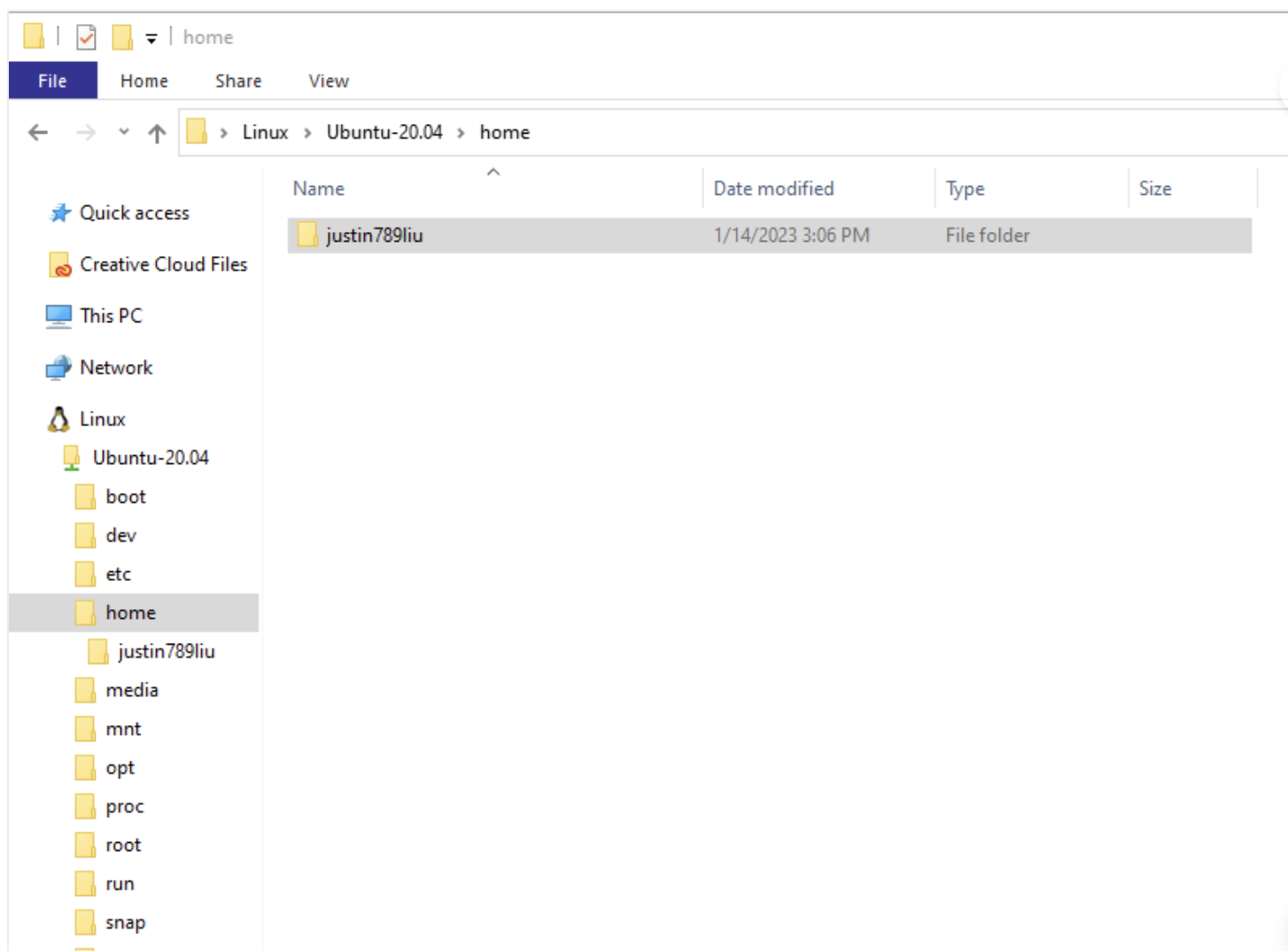
To open the File Explorer in any directory at the WSL (Ubuntu) Terminal:
1.2.5 Accessing Windows files from Linux
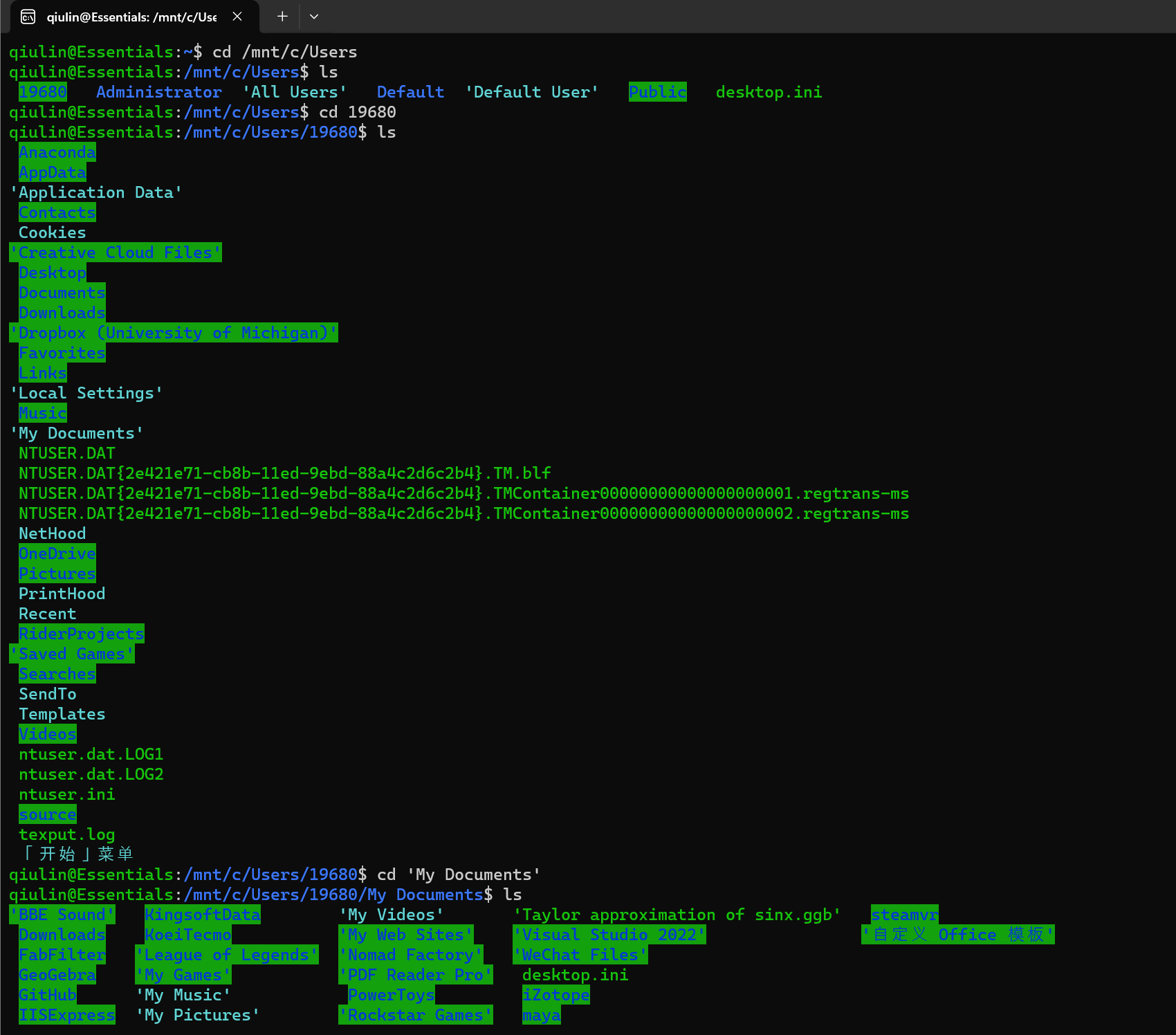
To access Windows files from Linux, navigate to /mnt/c/.
cd就是change directory,就是更改当前的working directory为该文件夹. 如果不给出absolute path的话就是在当前的working directory进入其中的某个子文件夹.
如果想要打开而不是进入某个文件夹/文件的话就是 open 以及 wslview. open 是MacOS的指令,wslview 是wsl的指令.
cd /mnt/c/Users
ls
# ...(目录里的各种东西)
cd 19680 #我的用户名
ls
# ...(目录里的各种目录和文件, 包括Desktop和Documents)
cd 'My Documents'
...
1.2.6 Pitfalls(需要注意的隐患)
- Avoid Spaces in paths
Avoid paths that contain spaces. Spaces causes problems with some command line tools.
| Bad Example | Good Example |
|---|---|
EECS 280/ |
eecs280/ |
Project 1 Stats/ |
p1-stats/ |
- Project folder in Windows home directory
WSL中Linux(Ubuntu)有一个独立的home directory.
虽然我们讲了怎么在WSL中ubantu和windows互通文件,但是将代码存储在 Windows 主目录中可能会导致运行速度减慢,因为 WSL 使用network file share(网络文件共享)在 Windows 和 Linux 之间传输文件.
| Bad Example | Good Example |
|---|---|
/c/mnt/Users/awdeorio ... |
/home/awdeorio ... |
- Root user
避免在 WSL 中以 root 用户身份进行 everyday coding,因为有些程序在以root用户身份运行时无法正常工作. When you first installed Ubuntu, you should have been prompted to create a Linux username and password.
1.3 Basic Commands
A file stores data like C++ source code (main.cpp) or plain text (example.txt).
A directory contains files and other directories. It’s also called a folder. 也就是文件夹
A path is the location of a file or directory. Sometimes we end a directory path with /.(有没有不重要) For example:
/Users/ohjun/Desktop/project/main.cpp
/Users/ohjun/Desktop/project/stuff/
1.3.1 ls: print files and directories in working directory
ls prints files and directories in the present working directory.
ls
# example.txt main.cpp stuff
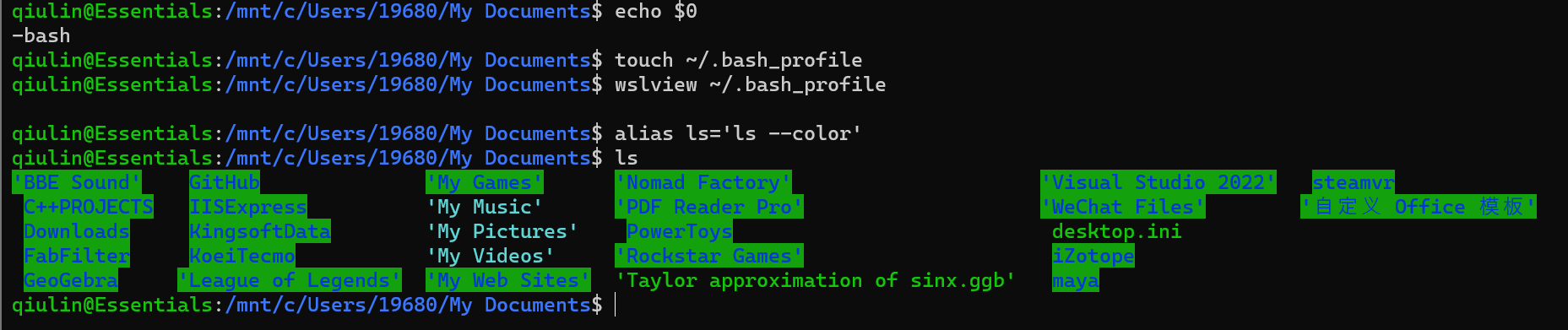
1.3.1* Pro-tip: Colorize the output of ls and prompt 定制颜色
for Windows/WSL and Linux (Bash shell):
Verify you’re using the Bash shell, which is typical on WSL Ubuntu Linux.
```cmd echo $0
-bash
touch ~/.bash_profile
Create file if it doesn't exist
wslview ~/.bash_profile alias ls='ls --color' ```
for macOS (z shell):
cmd
echo $0
touch ~/.zshrc  # Create file if it doesn't exist
open ~/.zshrc
alias ls='ls -G'
prompt 的颜色也可以 customize
For WSL, 通过
~/.bash_profile打开 bash_profile 文件,然后在文件中输入:
shell
export PS1='\[\e[0;32m\][\u] \[\e[0;34m\]\w/ \[\e[01;34m\]$ \[\e[0m\]'
For macOS, 通过
~/.zshrc打开 zshrc 文件,然后在文件中输入:
shell
PROMPT='%F{green}[%n] %F{blue}%~%f %B%F{blue}$%f%b '
1.3.2 tree: 以树状打印directory架构
tree recursively prints files and directories, which ilss useful for comparing your files against a project spec. 打印directory的架构
tree
.
├── example.txt
├── main.cpp
└── stuff
    └── hello.txt
如果新的系统没安装tree,这样安装
cmd
sudo apt install tree  # WSL, Linux
cmd
brew install tree      # macOS
1.3.3 pwd: print working directory
pwd 顾名思义也就是print working directory, 打印当前工作目录
pwd
# /Users/ohjun/Desktop/project
1.3.4 mkdir: make directory
mkdir 在当前的working directory creates a directory. 创造一个空目录(文件夹).
mkdir myfolder
1.3.5 touch: create file
touch creates an empty file. 创造一个空文件,并给它命名
touch euchre.cpp
1.3.6 rm, rm -rf: remove
rm removes (deletes) a file. 删除文件
rm -rf removes a directory. 删除一整个文件夹
rm euchre.cpp
rm -rf stuff2/
Files deleted by rm are gone forever. You cannot recover them from the Trash. 这和图形化界面里面的删除不一样!没有回收站,删了就是永久删了,一定要谨慎!
1.3.7 cd: change directory 更改工作目录
cd 顾名思义change directory.
前面在Accessing Windows files from Linux中已经讲过了,如果不给出absolute path的话就是在当前的working directory进入其中的某个子文件夹.
cd /mnt/c/Users
ls
# ...(目录里的各种东西)
cd 19680 #我的用户名
ls
# ...(目录里的各种目录和文件, 包括Desktop和Documents)
cd 'My Documents'
...
1.3.8 cp: copy and paste a file
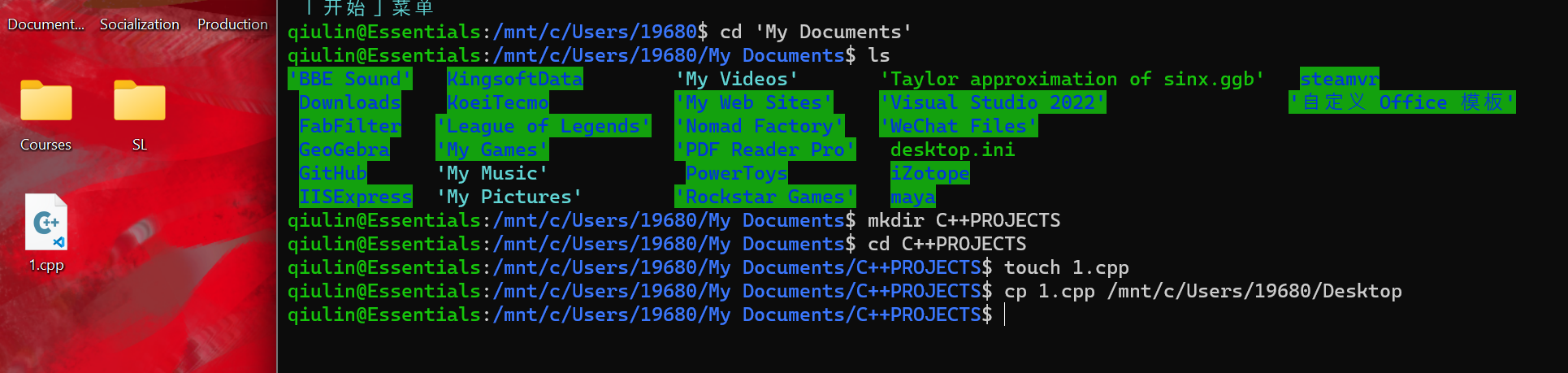
cp copies a file. 复制当前working directory中的一个文件到别的地方
cp 1.cpp /mnt/c/Users/19680/Desktop #也可以用../..等等表示parent directiry,不用重新打一遍之前的目录
1.3.9 open / wslview: Mac/Wsl打开文件
前面Accessing Windows files from Linux写过了, macOS 中用 open 来opens a file or directory with the default application; WSL (Windows)中用 wslview 来opens a file or directory with the default application.
如果没下载这个指令,还要下载才能用.
eg:
wslview 1.cpp
1.3.10 wget: 下载来自Internet的文件
wget downloads a file from the internet.
For example:
wget https://eecs280staff.github.io/p1-stats/starter-files.tar.gz
ls
# starter-files.tar.gz
1.3.11 tar: 解压压缩包
tar unpacks an archive. 也就是解压一个压缩包.
For example, unpack the starter files for EECS 280 project 1:
tar -xvzf starter-files.tar.gz
# starter-files/
# ...
tree
#.
├── starter-files
│   ├── Makefile
│   ├── main_test.in
│   ├── main_test.out.correct
│   ├── main_test_data.tsv
│   ├── p1_library.cpp
│   ├── p1_library.hpp
│   ├── stats.hpp
│   ├── stats_public_test.cpp
│   └── stats_tests.cpp.starter
└── starter-files.tar.gz
1.3.12 diff: 比较文件
diff compares two files. 如果没有output说明这两个file一模一样(除了名字).
比如下面就是比较 main_test.out 和 main_test.out.correct 这两个文件,结果一模一样,于是没有输出.
diff main_test.out main_test.out.correct
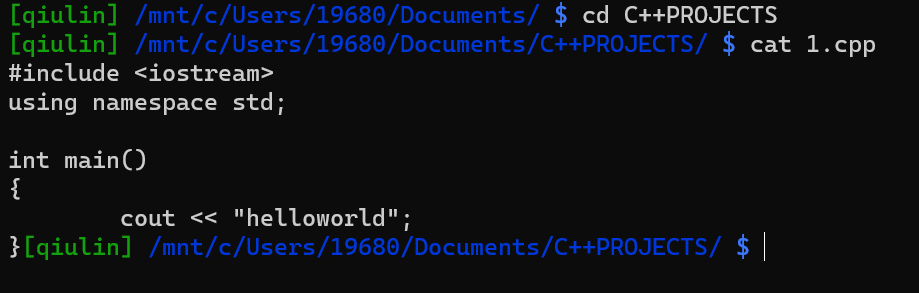
1.3.13 cat: 打印文件内容
cat concatenates(串联) files and prints them.
也就是你cat几个file就会串联地输出这几个file的内容.
For example, 随便在 1.cpp 里面写点东西
cat 1.cpp
1.3.14 grep: 在(多个)file中搜索
grep, 顾名思义,就是“globally search for a regular expression and print matching lines”.(这个好像不太顾名思义,)
grep vector main.cpp
# #include <vector>
#       vector<double> v = extract_column(filename, column_name);
#         vector<vector<double> > summary = summarize(v);
再比如更加高级:Search for vector in 当前working directory,也就是这个项目中所有的 .cpp files. terminal会自动告诉你哪行是在哪个 .cpp 文件,因而非常好用.
grep vector *.cpp
# main.cpp:#include <vector>
# main.cpp:  vector<double> v = extract_column(filename, column_name);
# main.cpp:  vector<vector<double> > summary = summarize(v);
# stats.cpp:#include <vector>
# ...
# stats_tests.cpp:#include <vector>
# ...
1.4 File, Directory, Path
1.4.1 Current directory .
. refers to the current directory.
打开current directory的方法:
macOS:
open .
Windows/WSL:
wslview .
1.4.2 Absolute & Relative Path(绝对&相对路径)
An absolute path starts from the root directory /.
Eg:
cmd
/usr/local/bin/python3
/usr/bin/python3
A relative path starts from the current directory.
Eg:
cmd
./main.exe
1.4.3 Parent directory ..
父目录:原目录的上一级目录
.. refers to the parent directory of the current directory.
pwd
# /Users/ohjun/Desktop/project/stuff
cd ..
pwd
# /Users/ohjun/Desktop/project
1.4.4 Home directory ~
~ refers to your home directory.
cd ~
pwd
# /Users/ohjun
ls
# Applications Pictures Desktop ...
1.4.5 Root directory /
/ refers to the root directory. This is the top-most directory in your file system, and has no parent. 根目录是文件系统中最顶层的目录,它没有父目录.
ls /
# Applications cores sbin ...
1.4.6 Glob *
A glob is a wildcard path that may match multiple paths. The * symbol matches any string.
可以联想一下python里面的 import 什么什么.*,就是import这个包里所有东西.
下面就是一个示范,把starter_files这个directory里面所有东西都copy and paste到当前的working directory中.
cp -v starter_files/* .
# './Makefile'
# './main_test.in'
# ...
1.5 Redirection
1.5.1 Pipe |:
The pipe (|) sends the output of the left command to the input of the right command.
把左边命令的输出放进右边命令的输入,然后执行右边命令.
看着有点绕. Here’s an example that searches for .cpp files. The output of ls is piped to the input of grep. 这里是把 ls 也就是打印 working directory 中所有文件的结果弄成一个临时文件让grep查查里面有几个 .cpp, 巧妙地查询了当前 directory中 cpp 文件的数量.
$ ls | grep cpp
main.cpp
stats.cpp
stats_tests.cpp
1.5.2 Input redirection <: 用文件作为程序输入
Input redirection sends the contents of a file to the input of a program.
Input redirection is useful for automating program input. 这是程序自动化的重要内容.
非常逆天的一件事情是C++中我们知道 << 是outstream的方向,>> 是instream的方向. 而terminal里面是反的,<才是input,> 才是output. 可能因为unix系统诞生的时候C++还远没有出现.
Here’s an example program.
#include <iostream>
#include <string>
using namespace std;

int main() {
  cout << "What's your name?" << endl;
  string name;
  cin >> name;
  cout << "Hello " << name << "!\n";
}
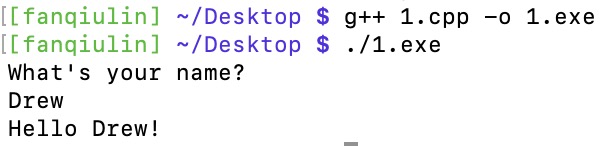
我们可以直接在terminal里面用编译器来跑程序,创建一个exe文件来跑程序,用terminal作为输入和输出流的工具:
g++ main.cpp -o main.exe
./main.exe
# What's your name?
# Drew (input)
# Hello Drew!
Create a file with user input. We’ll call it main_test.in.
Drew
Redirect file main_test.in to stdin of main.exe. We have automated user input.
g++ main.cpp -o main.exe
./main.exe < main_test.in
# What's your name?
# Hello Drew!
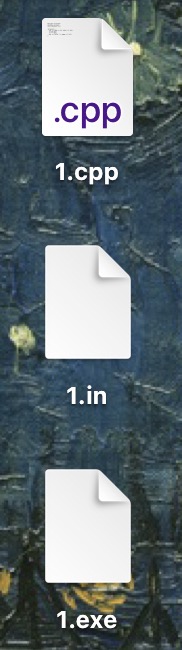
这就十分甚至九分好用,尤其是不在开发大项目而是写一个小程序的时候,IDE太冗余而且臃肿了,这时候就可以展现一下高超的linux素养(迫真!
下面是一段笔者的展示:

1.5.3 Output redirection >: 储存程序的输出
继续刚才的程序. 现在我们用 > 来把程序的输出放进一个文件. 区别不同的是这里不用再创建 1.out 这个文件,terminal会自动帮我们创建.
./main.exeruns the program< main_test.inredirectsmain_test.into stdin> main_test.outredirects stdout tomain_test.out
./main.exe < main_test.in > main_test.out
这个时候可以再加点debug!我们可以在working directory创建一个叫做 main_test.out.correct 的文件,然后在里面写预期的结果. 然后我们用 diff 来检查它和 main_test.out 的出入,看看是否一致,以此来debug.
1.6 Useful Tips
1.6.1 clear: clear the terminal
清理terminal/ubantu,不显示刚才写的东西. 但是并不会改变working directory.
也有快捷键,是Control + L.
1.6.2 Tab complete
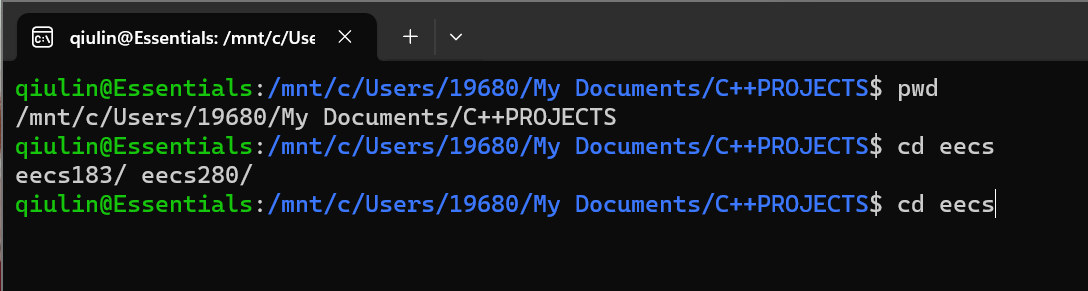
按一次tab自动补全可能的directory,按两次tab显示可选选项.
比如这个C++PROJECTS中有两个子文件夹eecs183和eecs280,输入 cd e之后按一次tab会帮你补全成 cd eecs , 再按一次会显示你有eecs183和eecs280两个选项.
1.6.3 ↑和↓
按 ↑ 会预输入你上一个command,也就是说问你要不要重复上个步骤.
按几次 ↑ 就是上几个,同样在过程中按 ↓ 就是这个的下一个command.
好处是如果连续输入多个类似command,可以用上下键来减少打字量. 如果是长命令就更加适合.
1.6.4 Customize prompt: prompt改颜色
At this point, you should know whether you are using Bash or Z Shell, and you should have a working .bash_profile or .zshrc file.
(1) 如果是mac的zshell:
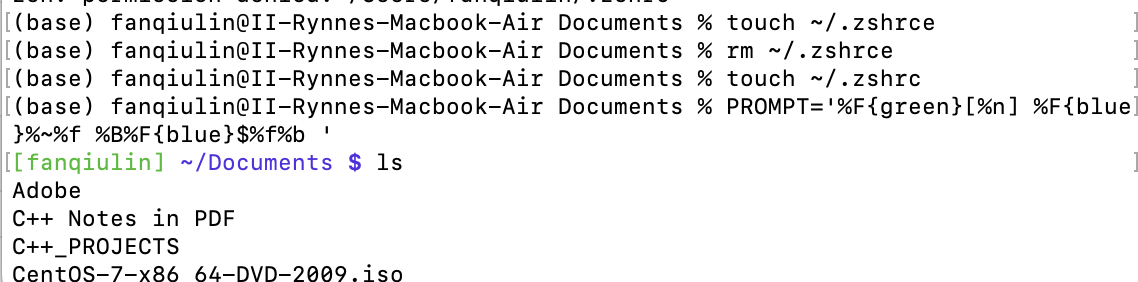
首先输入zsh打开zshell, 然后如果没创建过 .zshrc 文件的话,就输入 touch ~/.zshrc 在home directory创建一个叫 .zshrc 的文件,zshell会自动识别它.
而后输入这一行命令
PROMPT='%F{green}[%n] %F{blue}%~%f %B%F{blue}$%f%b '
就会更改一些关键词的颜色更加容易识别. 也可以了解一下增加更多的自定义.
(2) 如果是wsl的bash shell:
首先打开ubantu, 然后如果没创建过 .bash_profile 文件的话输入 touch ~/.bash_profile 在home directory创建一个,bash shell 会自动识别它.
而后输入这一行命令
export PS1='\[\e[0;32m\][\u] \[\e[0;34m\]\w/ \[\e[01;34m\]$ \[\e[0m\]'
和mac差不多,就是改了一些关键词.

1.7 Shell Scripting(脚本)
In this tutorial, you’ll learn to automate command line tasks using a shell script. Each line of code in a shell script is a command that could be entered at the command line.
下面我们用一个例子来介绍.
wc 是一个用来计数的command, -l 表示line,行数. wc -l file1将返回'file1'中的行数.
现在我们来写一些command用以统计the number of files and directories in the present working directory.
ls
# bin  hello  hello_css  html  insta485  insta485generator  pyproject.toml  tests
echo "Count of files and folders:"
# Count of files and folders:
ls | wc -l
# 8
1.7.1 Creating a shell script
现在我们不一行一行打了. 我们创建一个text file called lscount and add the following contents. Notice that shell scripts may omit a file extension. shell scripts的后缀名名会被忽略,并不重要.
#!/bin/bash
#
# lscount
#
# List files and folders, followed by a count

# Stop on errors, print commands
# See https://vaneyckt.io/posts/safer_bash_scripts_with_set_euxo_pipefail/
set -Eeuo pipefail
set -x

# List
ls

# Count
echo "Count of files and folders:"
ls | wc -l
1.7.2 Adding an executable bit
We can’t yet execute the script because the executable bit is not yet set. The rw means “Read Write”. **
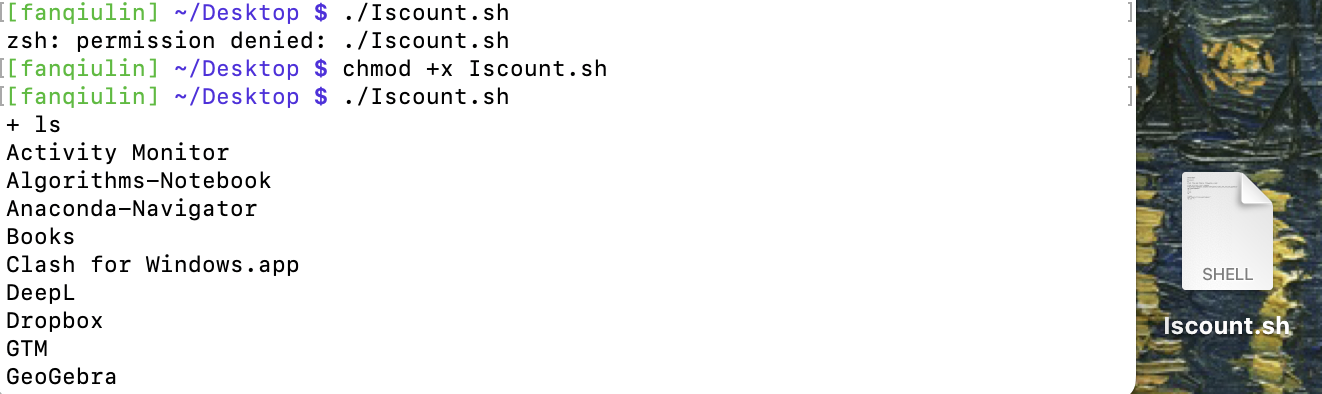
那么怎么设置可执行的权限呢?我们在运行script之前写上 chmod +x 加上script的名字就可以. 这样就把 rw 只读改成rwx : “Read Write Execute”.
chmod +x lscount
那么怎么检测有没有设置成功呢?我们使用 ls -l 指令.
ls -l lscount
output是这个 -rw 说明权限还是只读.
# -rw-rw-r-- 1 awdeorio staff 273 Aug 27 10:15 lscount
是下面这个 -rwx 说明权限改好了.
# -rwxrwxr-x 1 awdeorio staff 273 Aug 27 10:15 lscount
最后在当前working directory运行script.
./lscount
下面是笔者的一个示例.

1.7.3 注意事项
- Shebang
Scripts need a special first line, called a shebang. Make sure you didn’t forget it.
head -n1 bin/lscount
!/bin/bash
- Stop on errors
默认情况下,shell 脚本error时不会stop。每个bash shell 脚本的第一行代码都应该写上下面这个东西. Here’s why.
set -Eeuo pipefail
- Lines Endings
Scripts need to have UNIX line endings to work properly. Windows CRLF line terminators are a problem.
./bin/lscount
# -bash: ./bin/lscount: /bin/bash^M: bad interpreter: No such file or directory
file ./bin/lscount
# bin/lscount: Bourne-Again shell script text executable, ASCII text, with CRLF line terminators
Change Windows line endings to UNIX line endings. 以下三个方法都可以.You might have to install the dos2unix package.
dos2unix bin/lscount
fromdos bin/lscount
sed -ri 's/\r$//' bin/lscount
This is what a correct script file type looks like:
file bin/lscount
# bin/lscount: Bourne-Again shell script text executable, ASCII text